Author: Charlotte Thurston
-
-
Fair Use and Media Attribution
You can–and hopefully will!–use your own images, music, and video on Open Lab course, hub, and portfolio sites. However, if you do decide to use media other than your own, whether a photo or music, you should make sure it’s media that the owner/creator has licensed other people to use for free, and that you remember to give proper credit (attribution) when you use that media.
Attributing images
Creative Commons is a nonprofit organization that provides free, standardized copyright licenses; these licenses allow people to take creative work they own the copyright to and make it available to the public for free and legal sharing, use, repurposing, and remixing.
In other words, CC licenses let people change their copyright from the default “all rights reserved” to “some rights reserved.” Creative Commons licenses are not an alternative to copyright, but rather modify a creator’s copyright.
You can use Creative Commons-licensed materials as long as you follow the license conditions, one of which is attribution. Usually, a photo credit is printed below the image as a small caption. You will need to include as much of this information as you can:
- Attribution: Give author + what site you got it from + CC license; link to source
- Example: “Brooklyn Street Scenes” by Steven Pisano (CC BY 2.0)
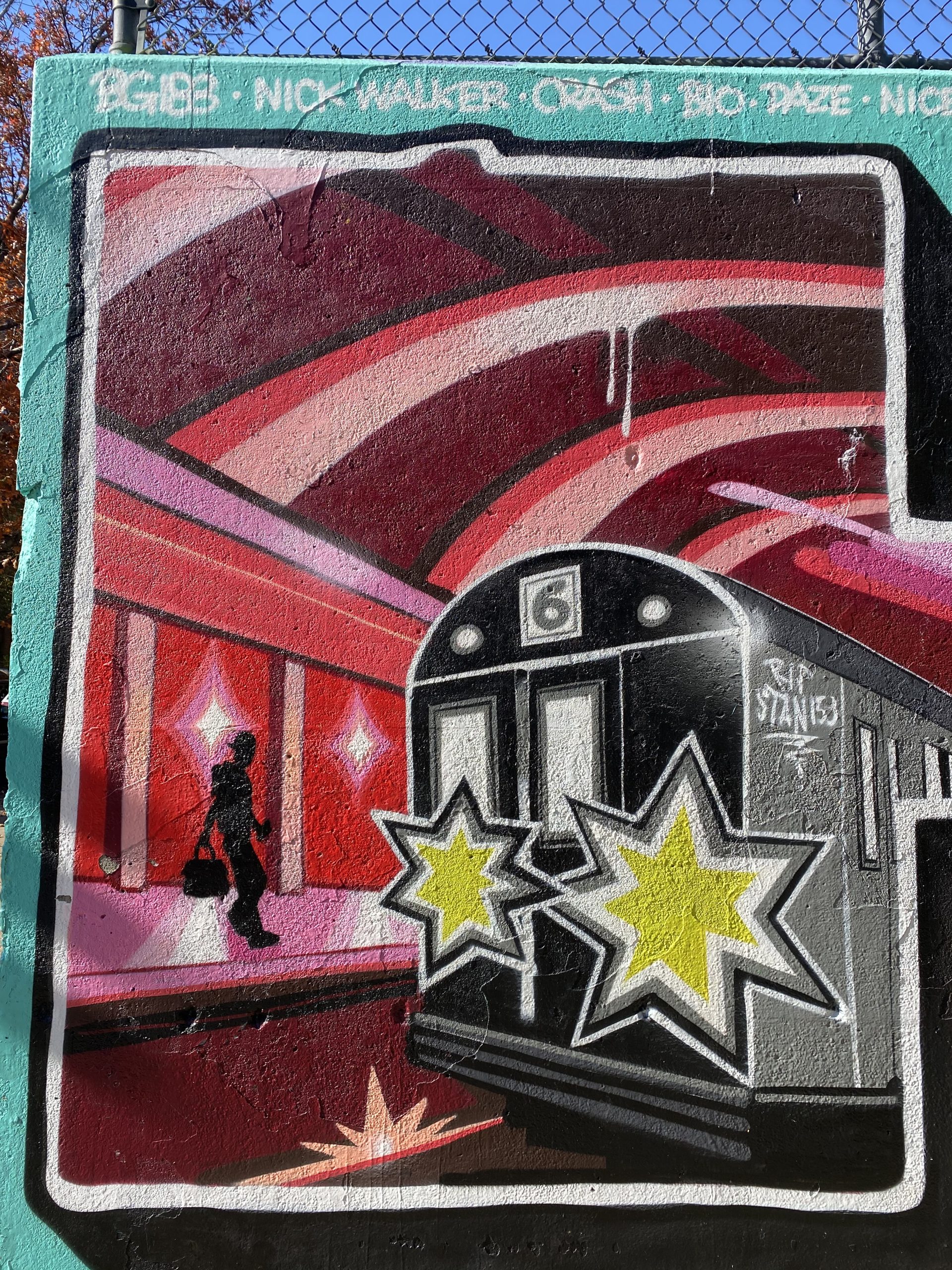
Notice that the attribution goes beyond just giving a link! But, if you use the Creative Commons search engine below, the site will automatically generate an attribution like this for you! For example, Creative Commons generated this attribution for the featured image for this post: “Harlem art” by TheTurducken is licensed under CC BY 2.0.”
Creative Commons image collections
Here are some places you can find images that you can use, usually with attribution, for your sites. You can also use your own images, of course, and you may want to give yourself attribution (“Summer outside my apartment building,” photo by Mabel Mora).
- Flickr (or do a search on Flickr.com and change “any license” to “all creative commons”)
- Wikimedia
- Creative Commons (note that they will provide you with image attributions!)
- https://stocksnap.io/
- Google images (Click Tools>Usage Rights>Creative Commons licenses)
- Getty Images Embed (use the embed code they provide)
- Unsplash
- Little Visuals
- New Old Stock
- Picjumbo
- Gratisography
- Getrefe
- Jay Mantri
- Magdeleine
- Foodiesfeed
- Picography
- ISO Republic
- The Noun Project (for fun icons)
- The Pattern Library (for interesting patterns)
Or, you can Google “creative commons images” or “free to use images” to find sites that offer images you can use with attribution.
Attributing materials automatically, on OpenLab
With the options on some blocks, you’ll see there is a figure of a person in a circle. Click it, and a box will pop open that allows you to put in the information about the media. If it’s your own media, you can determine whether you want to put a copyright on it (so other people are not allowed to use it without your permission)–or, you can share it under the Creative Commons license of your choice!
Freyja and Shpitz the cat are watching to make sure you give attribution to your media! -
Creating a portfolio & site
Your portfolio is a place where you can create a WordPress site and also save post, pages, and comments you created on other OpenLab course, project, and club sites. You have options about making the portfolio and/or site private or public (or even hidden from search results.
Create a portfolio
Go to your Profile and click “Create Portfolio” (top right).

Choose portfolio settings
- Choose a name and URL for your site. The URL is unique to your portfolio.
- Choose an avatar (image) to associate with your portfolio
- Decide if you want your portfolio to be public, private, or hidden.
- Public: Content visible to anyone with the link and in the Portfolios directory. Anyone in the Macaulay OpenLab community can join.
- Private: Content not visible to anyone but members of the portfolio, but is visible in the Portfolios directory/home page. Community members can ask to join and see content if they are accepted.
- Hidden: Content not visible to anyone but members of the portfolio, and the portfolio is not listed in the Portfolios directory/home page. Only invited community members can join.


You can change these settings under Settings once you create your portfolio. If you want to enable posts, pages, etc from other portfolios, hubs, and course sites to show up on your portfolio, you can set that up under Settings >Settings

Create a site associated with your portfolio
Creating a portfolio means having a home for content you create across MHC OpenLab, but you can also create a WordPress site as part of your portfolio.
- Click “Settings,” then “Site”
- Choose a site URL (like your last name or the theme of your site)
- Decide site privacy settings
- Public: Anyone with the link can see the site, but you can choose whether the site shows up in search engine results
- Private:
- Visible only to community members or
- Visible only to community members with a role on the site
- Hidden
- Visible only to community members who are admins on the site.
- Decide what roles different members who joins the site have (see “member role definitions: associated site”)
- At the bottom, click “Save changes”


Ta-da: Now your site is associated with your portfolio! You can click it to get to the Dashboard to edit your WordPress site

-
Hello world!
Welcome! This is your first post. Edit or delete it, then start blogging!

