


Join this course/site
https://openlab.macaulay.cuny.edu/groups/freeman25
Under the avatar on the top right, click “request to join”
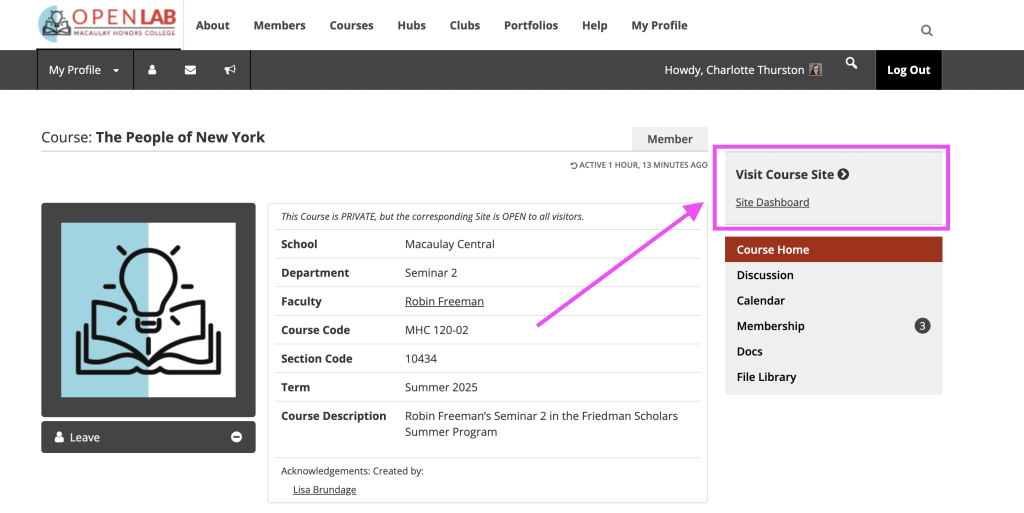
Once you are part of the site, click “site dashboard” under “Visit Course Site” (right hand side of the page).

Create your post
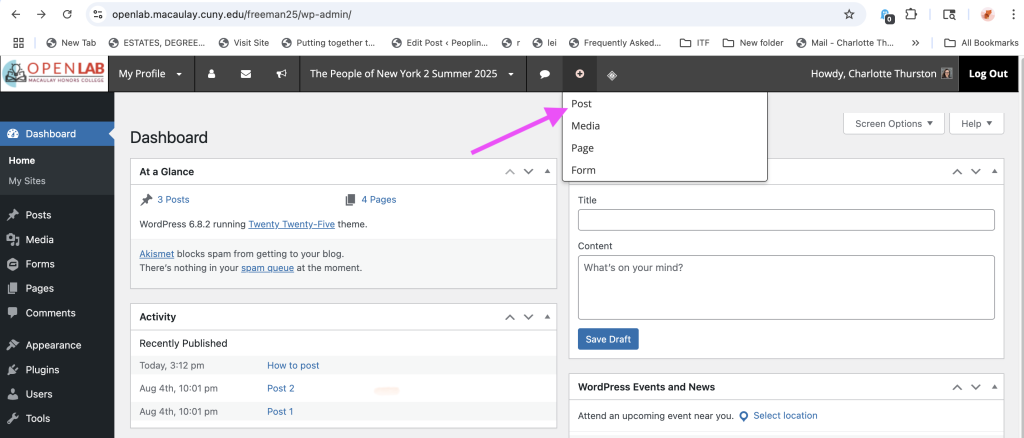
In the dashboard, from the menu at the top, click “+” and click “Post”
Write your post
In the “Add New Post” screen, you write the post you want to create. Enter the appropriate title and any text you want in the post. You can add images by clicking the plus sign in the top-left corner and selecting the “image” block. From here, you can upload images from your device. You can also embed media, create image galleries, etc, through the various blocks listed on the right. Feel free to explore.
- Add a Featured Image On the right hand side, under “Post,” select “Set Featured image” and upload/choose an image
- Choose Your Category
Before publishing your post, make sure you choose the right category or categories for it. Look for the categories on the right hand side, under “Post.” - Add Alt-Text to Image
Alt-text is the description of an image used by screenreaders for people who are blind or have vision impairments. It’s good for accessibility to add a brief description of any images for that reason (“cat with head upside down, one eye open, on top of the book Clarissa ) - Publish!
When your post is ready, click “Publish.”

Some Embed Options
Embed a Google Slide Presentation
- In your Slides presentation, go to Files > Publish to the Web
- Choose “Embed” rather than Link. Click “Publish”
- Copy the html code (<iframe…) that appears
- Choose the “Custom HTML” block under “Widgets” category
- Paste the HTML code, and save (see example below)
Embed a Canvas Presentation
- In your Canva presentation, go to “Share” in the top right Corner
- Click “Public View Link” and “Create Public View Link.”
- Copy link and paste it directly into your post!
Embed a YouTube video
Paste the link to the video directly into your post!
(or, use the YouTube embed block)
Sample embedded Google Slides
Sample Canva Embed
More advanced post options
Within each block, you have options to further tailor how your post looks (size, borders, colors, etc).
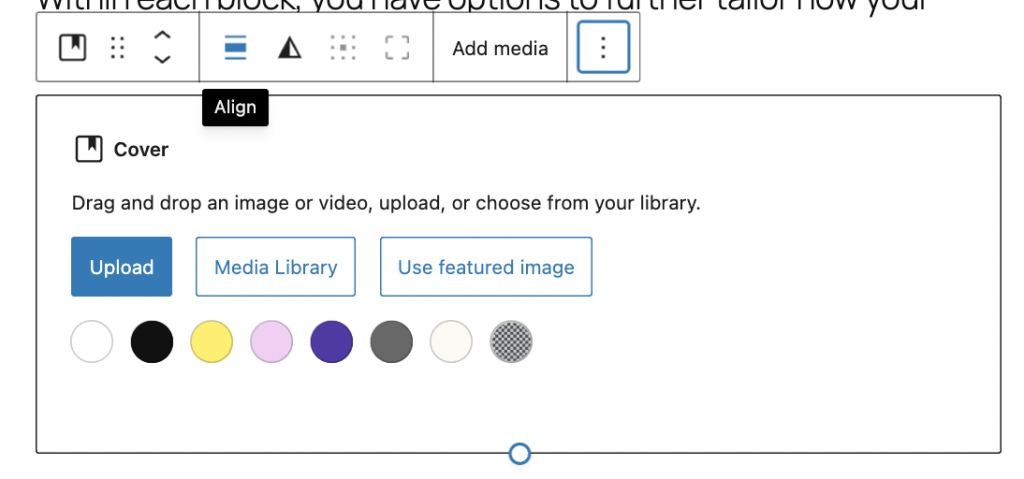
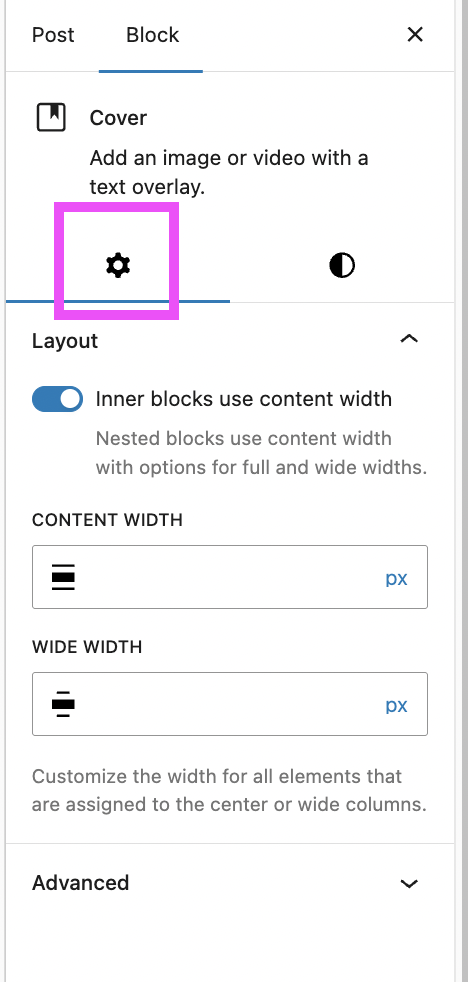
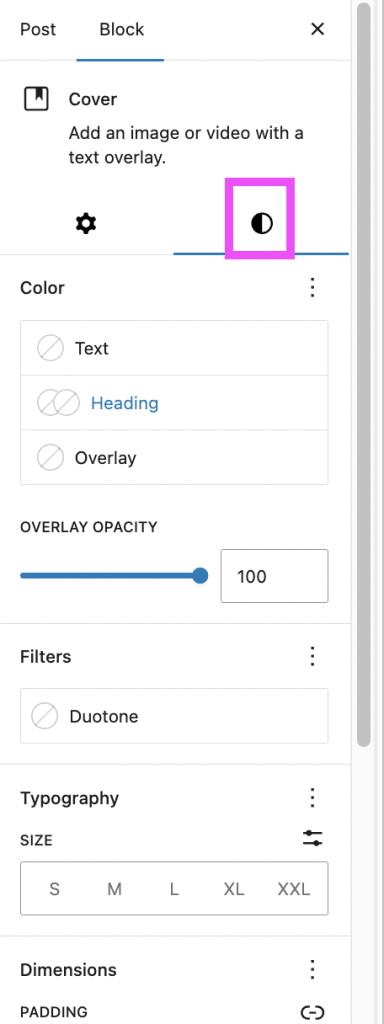
Below, I used the Cover block (image + text) and used the Duotone filter under the Styles tab to alter the image

Cover block + Duotone effect


Leave a Reply
You must be logged in to post a comment.