

To post on this site, you’ll need to first be added to it as an author. You’ll need to complete three steps to do this, which we’ll have done on the first day of class. These steps are listed here in case (a) you missed that class, or (b) something went wrong.
- Have access to a valid CUNY email address.
- Create an account on Macaulay OpenLab.
- While logged in, visit this course on OpenLab and click “Join.” You will then be added to this site as an author.
Making Posts
- Log into OpenLab
Go to the Macaulay OpenLab and log in. - Select this Class
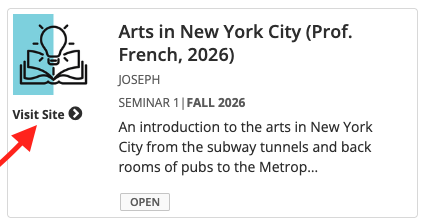
Once you’re signed in, hover over “My Profile” and click “My Courses” from the dropdown menu. Then, click “Visit Site” next to this class. *Make sure to click “Visit Site.” Don’t just click this class’s title – that takes you to a different page.
- + New
Click “+ New” at the top of the page. This will take you to the “Add New Post” page. - Write Your Post
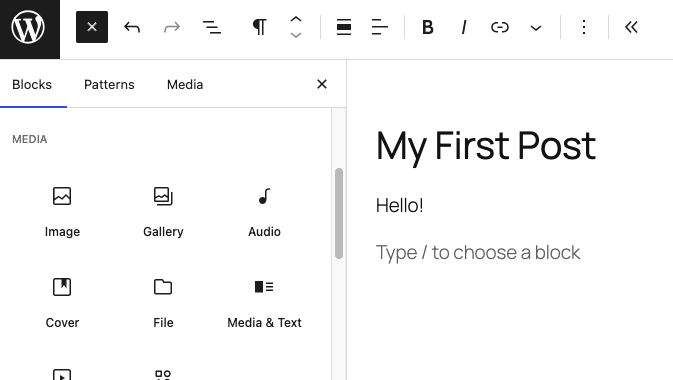
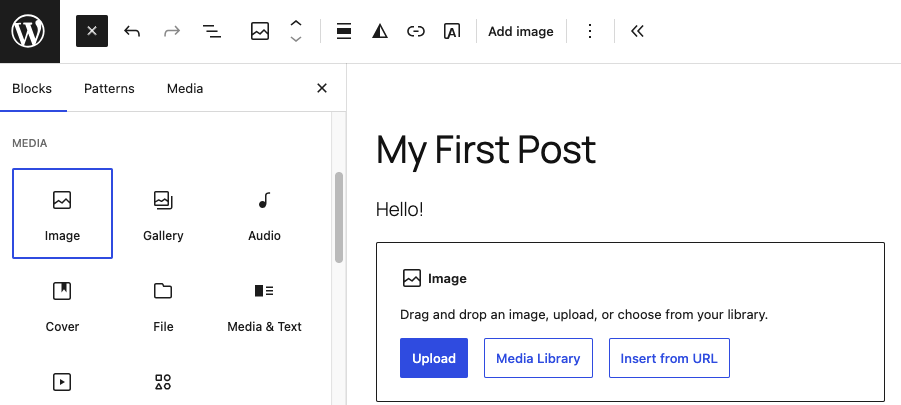
In the “Add New Post” screen, you write the post you want to create. Enter the appropriate title and any text you want in the post. To upload images or other files, click the blue plus button at the top left of the screen to add whatever type of block is appropriate, like “image” or “audio.” Then, follow the prompts in the block that show up.

- Choose Your Category
Before publishing your post, make sure you choose the right category based on the date of the assignment. At the right side of the screen, make sure you have the “Post” tab selected, rather than “Block.” Then, check the appropriate box under the “Categories” title. (You may need to scroll down to find it.)

- Publish
When your post is ready, click “Publish.”
If you’ve already made posts, but forgot to categorize them, please go back and edit them to select the right category. This makes sure you get credit for having done your assigned posting.
If you need help or have trouble with any of this, please contact TLC Research Associate Joseph Pentangelo.

